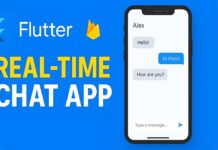

A complete Flutter Group Chat App with Firebase that supports video and audio calls. After creating a one-to-one chat app in Flutter using Firebase, this time I am going to build a proper group chat system with unread counts, typing indicators, calling features, and many more.
So this time, I decided to build a complete Group Chat App in Flutter, and in this article, I’ll walk you through how it works, what features I added, and how you can implement similar logic in your own app.
This group chat app allows users to create chat groups, communicate in real time, and manage group settings based on permissions. The app is built using Flutter, Firebase, and ZEGOCLOUD SDK for audio and video calls.
Group Creation & Roles
When a user creates a group, they automatically become the admin of that group. Admins have special permissions that regular members don’t.
Then list only what matters:
- Admin can remove any member
- Admin can delete the group
- Admin can update the group name and image
- Admin Permission Control
One interesting feature I added is admin-controlled permissions.
The admin can decide whether normal members are allowed to:
- Add new members
- Change the group name
-
Update the group image
If the admin enables these options, then any group member can manage those parts of the group. Otherwise, only the admin has control.
Messaging Experience
Talk about UX, not just logic.
- Unread message count
- Typing indicator
-
Auto-scroll when a new message arrives
Example:
To improve the chatting experience, I added an unread message counter for each group. This helps users quickly see which groups have new messages.
There’s also a typing indicator, so when someone is typing in the group, other members can see it in real time.
Messages automatically scroll to the bottom when a new message is sent, making the chat feel smooth and natural.
Audio & Video Calls (ZEGOCLOUD)
For group audio and video calls, I used the ZEGOCLOUD SDK. It provides reliable real-time calling features and integrates well with Flutter.
Users can start audio or video calls directly inside the group chat, making communication more interactive.
One-to-One Chat App
Some parts of this group chat app reuse logic from my previous one-to-one chat app, such as message handling and UI components.
If you’ve already followed that project, you’ll find it easier to understand this one. I’ve also shared the source code for those reusable parts.
All the setup processes for ZEGOCLOUD and for Firebase, you can find the instructions and video in this blog post
If you follow this blog post and video tutorial to build your own group chat app, then first you need the authentication process. You can get the source code on the Flutter chat app with Firebase post if you need, after that, you can go your way.
I will share with you some awesome features that I have used while building this app, and this is a common toast message that we’ll use throughout the app — one for errors and another for success. For this, I’ve used the cherry_toast package.
import 'package:cherry_toast/cherry_toast.dart';
import 'package:cherry_toast/resources/arrays.dart';
import 'package:flutter/material.dart';
enum SnackbarType { success, error }
void showAppSnackbar({
  required BuildContext context,
  required SnackbarType type,
  required String description,
}) {
  switch (type) {
    case SnackbarType.success:
      CherryToast.success(
        toastDuration: Duration(milliseconds: 2500),
        height: 70,
        toastPosition: Position.top,
        shadowColor: Colors.white,
        animationType: AnimationType.fromTop,
        displayCloseButton: false,
        backgroundColor: Colors.green.withAlpha(40),
        description: Text(
          description,
          style: const TextStyle(color: Colors.green),
        ),
        title: const Text(
          "Successful",
          style: TextStyle(color: Colors.green, fontWeight: FontWeight.bold),
        ),
      ).show(context);
      break;
    case SnackbarType.error:
      CherryToast.error(
        toastDuration: Duration(milliseconds: 2500),
        height: 70,
        toastPosition: Position.top,
        shadowColor: Colors.white,
        animationType: AnimationType.fromTop,
        displayCloseButton: false,
        backgroundColor: Colors.red.withAlpha(40),
        description: Text(
          description,
          style: const TextStyle(color: Colors.red),
        ),
        title: const Text(
          "Fail",
          style: TextStyle(color: Colors.red, fontWeight: FontWeight.bold),
        ),
      ).show(context);
      break;
  }
}
Next, for the typing indicator, I will create a simple animation, which is a simple animated three-dot bounce
import 'package:flutter/material.dart';

class ThreeDots extends StatefulWidget {

  const ThreeDots({
    super.key,
  });

  @override
  _ThreeDotsState createState() => _ThreeDotsState();
}

class _ThreeDotsState extends State<ThreeDots>
    with SingleTickerProviderStateMixin {
  late AnimationController _controller;

  @override
  void initState() {
    super.initState();
    _controller = AnimationController(
      duration:const Duration(milliseconds: 500) * 3,
      vsync: this,
    )..repeat();
  }

  @override
  void dispose() {
    _controller.dispose();
    super.dispose();
  }

  Widget _buildDot(int index) {
    return ScaleTransition(
      scale: CurvedAnimation(
        parent: _controller,
        curve: Interval(index / 3, (index + 1) / 3, curve: Curves.easeInOut),
      ),
      child: Container(
        width: 5,
        height: 5,
        decoration: BoxDecoration(color: Colors.green, shape: BoxShape.circle),
      ),
    );
  }

  @override
  Widget build(BuildContext context) {
    return Row(
      mainAxisAlignment: MainAxisAlignment.center,
      children: List.generate(3, _buildDot)
          .map(
            (dot) => Padding(
              padding: const EdgeInsets.symmetric(horizontal: 2),
              child: dot,
            ),
          )
          .toList(),
    );
  }
}
Similarly, instead of using navigator every time, we have to create a common navigation helper
import 'package:flutter/material.dart';

class NavigationHelper {
  // Push a new screen
  static void push(BuildContext context, Widget screen) {
    Navigator.push(context, MaterialPageRoute(builder: (context) => screen));
  }

  // Push with named route
  static void pushNamed(
    BuildContext context,
    String routeName, {
    Object? arguments,
  }) {
    Navigator.pushNamed(context, routeName, arguments: arguments);
  }

  // Replace current screen
  static void pushReplacement(BuildContext context, Widget screen) {
    Navigator.pushReplacement(
      context,
      MaterialPageRoute(builder: (context) => screen),
    );
  }

  // Pop the current screen
  static void pop(BuildContext context, {dynamic result}) {
    Navigator.pop(context, result);
  }

  // Push and remove all previous screens
  static void pushAndRemoveUntil(BuildContext context, Widget screen) {
    Navigator.pushAndRemoveUntil(
      context,
      MaterialPageRoute(builder: (context) => screen),
      (route) => false, // Remove all previous routes
    );
  }
}
Time helper class to separate each day on chat.
import 'package:flutter_firebase_chat_app/feature/group%20chat/model/group_chat_model.dart';
import 'package:intl/intl.dart';

String getDateLabel(DateTime dateTime) {
  final now = DateTime.now();
  final today = DateTime(now.year, now.month, now.day);
  final yesterday = today.subtract(const Duration(days: 1));
  final messageDate = DateTime(dateTime.year, dateTime.month, dateTime.day);

  if (messageDate == today) {
    return 'Today';
  } else if (messageDate == yesterday) {
    return 'Yesterday';
  } else if (messageDate.isAfter(today.subtract(const Duration(days: 7)))) {
    // Within last 7 days - show day name
    final dayNames = [
      'Monday',
      'Tuesday',
      'Wednesday',
      'Thursday',
      'Friday',
      'Saturday',
      'Sunday',
    ];
    return dayNames[dateTime.weekday - 1];
  } else {
    // Older than 7 days - show full date
    return DateFormat('MMMM d').format(dateTime); // e.g., "December 12"
  }
}

// Helper to check if we should show date separator
bool shouldShowDateSeparator(
  int currentIndex,
  List<GroupMessageModel> messages,
) {
  if (currentIndex == messages.length - 1)
    return true; // Always show for last message

  final currentMsg = messages[currentIndex];
  final nextMsg = messages[currentIndex + 1];

  final currentDate = DateTime(
    currentMsg.timestamp!.year,
    currentMsg.timestamp!.month,
    currentMsg.timestamp!.day,
  );
  final nextDate = DateTime(
    nextMsg.timestamp!.year,
    nextMsg.timestamp!.month,
    nextMsg.timestamp!.day,
  );

  return currentDate != nextDate;
}
Conclusion
This project helped me understand how real-world group chat systems work, particularly in terms of admin roles and real-time updates.
If you’re building a chat app in Flutter, I hope this article gives you a clear idea of how to approach a group chat system. I’ll continue to improve this app and share updates in future posts.