Building a live streaming app with Flutter has become much easier nowadays. Live streaming has become one of the fastest-growing features in the tech world. Whether it’s online education, gaming, or social interaction, users love real-time engagement. As developers, Flutter makes it incredibly simple to build apps for both Android and iOS with a single codebase. In this article, we’ll walk through how you can create a live streaming app in Flutter using ZEGOCLOUD, a powerful and reliable real-time communication platform.
What We Will Build
- The host can start a Live stream
- Viewers can join the stream
- On the home screen, users can see everyone available in the app, and those who are currently live appear at the top. With just one tap, anyone can join a live stream as an audience member.
- Video/Audio toggle
- Real-time chat in a live room
- Cross-platform support (Android / iOS)
YouTube Video link: https://youtu.be/BHg6Qih8WkQ
Step 1: Setting Up Your Flutter Project
First, create a new Flutter project or use your existing one and set up the required dependencies and environment for it. Follow along with the video tutorial or read this blog article carefully. While creating a live streaming app in Flutter, we have used the following dependencies:
- Add ZegoUIKitPrebuiltLiveStreaming as dependencies
Run the following code in your project’s root directory:
flutter pub add zego_uikit_prebuilt_live_streaming
Now, in your Dart code, import the Live Streaming Kit SDK.
import 'package:zego_uiki/zego_uiki.dart';
import 'package:zego_uikit_prebuilt_live_streaming/zego_uikit_prebuilt_live_streaming.dart';
After that, you need to configure your project to use ZegoUIKitPrebuiltLiveStreaming. Follow this official documentation provided by Zegocloud.
2. Add Firebase-related dependencies for authentication and database
firebase_core: ^4.2.0
cloud_firestore: ^6.0.3
firebase_auth: ^6.1.1
google_sign_in: ^7.2.0
Use the latest version of these dependencies.
Step 2: Connect your Flutter project with Firebase
We need Firebase Authentication and Firestore in our project. So first, we must connect the Flutter app to Firebase for both Android and iOS. I’ve already created a YouTube video and a blog article( Firebase setup for Android and IOS) that explains this setup step-by-step. If you face any issues, please check out the video or read the blog for guidance.
Finally, you are ready to start coding for a live streaming app after Zegocloud and Firebase setup.
Let’s start to build the project
Project structure
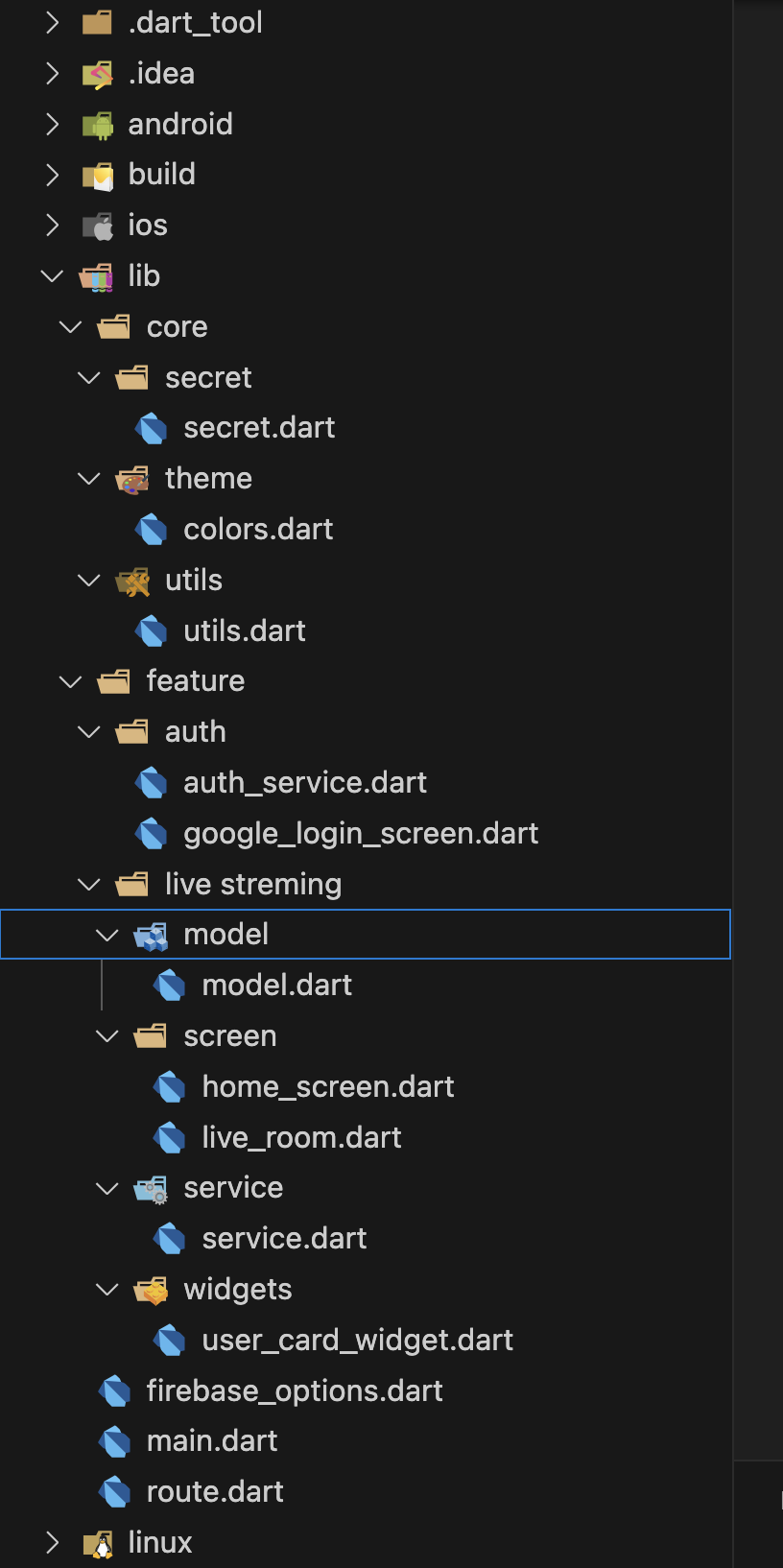
Step 3: Authentication
Every project needs a secure and well-organized authentication system. In this project, we will use Google Sign-In provided by Firebase. Since Google authentication is commonly required, I have already created a separate blog post about it, where you can also find the source code. Google login
After the authentication, we are finally on the way to achieving the live streaming feature in our Flutter app
Step 4: UI for Create & Join Stream
lib/feature/live_streaming/screen/home_screen.dart
import 'package:flutter/material.dart';
import 'package:firebase_auth/firebase_auth.dart';
import 'package:live_streaming_app/feature/live%20streming/screen/live_room.dart';
import 'package:live_streaming_app/feature/live%20streming/model/model.dart';
import 'package:live_streaming_app/feature/live%20streming/service/service.dart';
import 'package:live_streaming_app/feature/live%20streming/widgets/user_card_widget.dart';

class HomeScreen extends StatefulWidget {
  const HomeScreen({super.key});

  @override
  State<HomeScreen> createState() => _HomeScreenState();
}

class _HomeScreenState extends State<HomeScreen> {
  final FirebaseService _firebaseService = FirebaseService();
  final String currentUserId = FirebaseAuth.instance.currentUser!.uid;

  @override
  Widget build(BuildContext context) {
    return Scaffold(
      appBar: AppBar(
        title: const Text("Live Streaming"),
        forceMaterialTransparency: true,
        centerTitle: true,
        actions: [
          IconButton(
            icon: const Icon(Icons.logout_sharp),
            onPressed: () async {
              // Sign out logic
              await FirebaseAuth.instance.signOut();
            },
          ),
        ],
      ),
      body: StreamBuilder<List<UserModel>>(
        stream: _firebaseService.getUsersStream(currentUserId),
        builder: (context, snapshot) {
          if (snapshot.connectionState == ConnectionState.waiting) {
            return const Center(child: CircularProgressIndicator());
          }

          if (!snapshot.hasData || snapshot.data!.isEmpty) {
            return const Center(child: Text("No users available"));
          }

          List<UserModel> users = snapshot.data!;

          // Sort users: Live users first, then others
          users.sort((a, b) {
            if (a.isLive && !b.isLive) return -1;
            if (!a.isLive && b.isLive) return 1;
            return 0;
          });

          return GridView.builder(
            padding: const EdgeInsets.all(12),
            gridDelegate: const SliverGridDelegateWithFixedCrossAxisCount(
              crossAxisCount: 2,
              crossAxisSpacing: 12,
              mainAxisSpacing: 12,
              childAspectRatio: 0.78,
            ),
            itemCount: users.length,
            itemBuilder: (context, index) {
              final user = users[index];
              return UserCard(user: user, onTap: () => _handleUserTap(user));
            },
          );
        },
      ),
      floatingActionButtonLocation: FloatingActionButtonLocation.endDocked,
      floatingActionButton: FloatingActionButton.extended(
        onPressed: _startLiveStreaming,
        icon: const Icon(Icons.videocam, color: Colors.white),
        label: const Text(
          "Go Live",
          style: TextStyle(color: Colors.white, fontWeight: FontWeight.bold),
        ),
        backgroundColor: Colors.blueAccent,
      ),
    );
  }

  void _handleUserTap(UserModel user) {
    if (user.isLive && user.liveId != null) {
      // Join live stream as audience
      Navigator.push(
        context,
        MaterialPageRoute(
          builder: (context) => LiveStreamingScreen(
            user: currentUserId,
            userName: FirebaseAuth.instance.currentUser!.displayName ?? "User",
            isHost: false,
            liveId: user.liveId!,
            hostName: user.name,
          ),
        ),
      );
    } else {
      // Show dialog that user is not live
      showDialog(
        context: context,
        builder: (context) => AlertDialog(
          title: const Text("Not Live"),
          content: Text("${user.name} is not live right now."),
          actions: [
            TextButton(
              onPressed: () => Navigator.pop(context),
              child: const Text("OK"),
            ),
          ],
        ),
      );
    }
  }

  void _startLiveStreaming() async {
    final currentUser = FirebaseAuth.instance.currentUser!;
    final liveId = "${currentUserId}_${DateTime.now().millisecondsSinceEpoch}";

    // Update live status in Firebase
    await _firebaseService.updateLiveStatus(currentUserId, true, liveId);

    // Navigate to live streaming screen as host
    if (mounted) {
      Navigator.push(
        context,
        MaterialPageRoute(
          builder: (context) => LiveStreamingScreen(
            user: currentUserId,
            userName: currentUser.displayName ?? "Host",
            isHost: true,
            liveId: liveId,
            hostName: currentUser.displayName ?? "Host",
          ),
        ),
      ).then((_) async {
        // When host ends the stream, update status
        await _firebaseService.updateLiveStatus(currentUserId, false, null);
      });
    }
  }
}
lib/feature/live_streaming/widgets/user_card_widget.dart
// widgets/user_card.dart
import 'package:flutter/material.dart';
import 'package:live_streaming_app/feature/live%20streming/model/model.dart';

class UserCard extends StatelessWidget {
  final UserModel user;
  final VoidCallback onTap;

  const UserCard({
    super.key,
    required this.user,
    required this.onTap,
  });

  @override
  Widget build(BuildContext context) {
    return GestureDetector(
      onTap: onTap,
      child: Card(
        elevation: 0,
        shape: RoundedRectangleBorder(
          borderRadius: BorderRadius.circular(12),
        ),
        child: Column(
          crossAxisAlignment: CrossAxisAlignment.stretch,
          children: [
            Expanded(
              child: Stack(
                children: [
                  // Profile Image
                  Container(
                    decoration: BoxDecoration(
                      borderRadius: const BorderRadius.vertical(
                        top: Radius.circular(12),
                      ),
                      image: DecorationImage(
                        image: NetworkImage(user.profileImage),
                        fit: BoxFit.cover,
                      ),
                    ),
                  ),
                  // Live Badge
                  if (user.isLive)
                    Positioned(
                      top: 8,
                      left: 5,
                      child: Container(
                        padding: const EdgeInsets.symmetric(
                          horizontal: 8,
                          vertical: 4,
                        ),
                        decoration: BoxDecoration(
                          color: Colors.red,
                          borderRadius: BorderRadius.circular(20),
                        ),
                        child: Row(
                          mainAxisSize: MainAxisSize.min,
                          children: const [
                            Icon(
                              Icons.circle,
                              color: Colors.white,
                              size: 8,
                            ),
                            SizedBox(width: 4),
                            Text(
                              "LIVE",
                              style: TextStyle(
                                color: Colors.white,
                                fontSize: 12,
                                fontWeight: FontWeight.bold,
                              ),
                            ),
                          ],
                        ),
                      ),
                    ),
                  // Gradient overlay for better text visibility
                  Positioned(
                    bottom: 0,
                    left: 0,
                    right: 0,
                    child: Container(
                      height: 60,
                      decoration: BoxDecoration(
                        gradient: LinearGradient(
                          begin: Alignment.bottomCenter,
                          end: Alignment.topCenter,
                          colors: [
                            Colors.black.withAlpha(130),
                            Colors.transparent,
                          ],
                        ),
                        borderRadius: const BorderRadius.vertical(
                          top: Radius.circular(12),
                        ),
                      ),
                    ),
                  ),
                ],
              ),
            ),
            // User Name
            Padding(
              padding: const EdgeInsets.all(12),
              child: Text(
                user.name,
                style: const TextStyle(
                  fontSize: 16,
                  fontWeight: FontWeight.bold,
                ),
                textAlign: TextAlign.center,
                maxLines: 1,
                overflow: TextOverflow.ellipsis,
              ),
            ),
          ],
        ),
      ),
    );
  }
}
Step 5: Create a UserModel
lib/feature/live_streaming/models/user_model.dart
// models/user_model.dart
class UserModel {
  final String id;
  final String name;
  final String profileImage;
  final bool isLive;
  final String? liveId;

  UserModel({
    required this.id,
    required this.name,
    required this.profileImage,
    this.isLive = false,
    this.liveId,
  });

  Map<String, dynamic> toMap() {
    return {
      'id': id,
      'name': name,
      'photoURL': profileImage,
      'isLive': isLive,
      'liveId': liveId,
    };
  }

  factory UserModel.fromMap(Map<String, dynamic> map) {
    return UserModel(
      id: map['id'] ?? '',
      name: map['name'] ?? '',
      profileImage: map['photoURL'] ?? '',
      isLive: map['isLive'] ?? false,
      liveId: map['liveId'],
    );
  }

  UserModel copyWith({
    String? id,
    String? name,
    String? profileImage,
    bool? isLive,
    String? liveId,
  }) {
    return UserModel(
      id: id ?? this.id,
      name: name ?? this.name,
      profileImage: profileImage ?? this.profileImage,
      isLive: isLive ?? this.isLive,
      liveId: liveId ?? this.liveId,
    );
  }
}
Step 5: Create a FirebaseService
- To get all user’s streams
-
Update the user’s live status
- To create or update a user
- To get a specific user
lib/feature/live_streaming/service/service.dart
// services/firebase_service.dart
import 'package:cloud_firestore/cloud_firestore.dart';
import 'package:live_streaming_app/feature/live%20streaming/model/model.dart';

class FirebaseService {
  final FirebaseFirestore _firestore = FirebaseFirestore.instance;

  // Get all users stream
  Stream<List<UserModel>> getUsersStream(String currentUserId) {
    return _firestore.collection('users')
    .where('uid', isNotEqualTo: currentUserId)
    .snapshots().map((snapshot) {
      return snapshot.docs
          .map((doc) => UserModel.fromMap(doc.data()))
          .toList();
    });
  }

  // Update user live status
  Future<void> updateLiveStatus(
      String userId, bool isLive, String? liveId) async {
    await _firestore.collection('users').doc(userId).update({
      'isLive': isLive,
      'liveId': liveId,
    });
  }

  // Create or update user
  Future<void> createOrUpdateUser(UserModel user) async {
    await _firestore.collection('users').doc(user.id).set(user.toMap());
  }

  // Get specific user
  Future<UserModel?> getUser(String userId) async {
    final doc = await _firestore.collection('users').doc(userId).get();
    if (doc.exists) {
      return UserModel.fromMap(doc.data()!);
    }
    return null;
  }
}
Step 6: Live Room
// screens/live_streaming_screen.dart
import 'package:flutter/material.dart';
import 'package:live_streaming_app/core/secret/secret.dart';
import 'package:zego_uikit_prebuilt_live_streaming/zego_uikit_prebuilt_live_streaming.dart';

class LiveStreamingScreen extends StatelessWidget {
  final String user;
  final String userName;
  final bool isHost;
  final String liveId;
  final String hostName;

  const LiveStreamingScreen({
    super.key,
    required this.user,
    required this.userName,
    required this.isHost,
    required this.liveId,
    required this.hostName,
  });

  @override
  Widget build(BuildContext context) {
    return SafeArea(
      child: ZegoUIKitPrebuiltLiveStreaming(
        appID: appID, // Your Zego App ID
        appSign: appSignIn, // Your Zego App Sign
        userID: user,
        userName: userName,
        liveID: liveId,

        config: isHost
            ? ZegoUIKitPrebuiltLiveStreamingConfig.host()
            : ZegoUIKitPrebuiltLiveStreamingConfig.audience()
      ),
    );
  }
}
For a dynamic snackbar
lib/core/utils/utils.dart
import 'package:cherry_toast/cherry_toast.dart';
import 'package:cherry_toast/resources/arrays.dart';
import 'package:flutter/material.dart';

enum SnackbarType { success, error }

void showAppSnackbar({
  required BuildContext context,
  required SnackbarType type,
  required String description,
}) {
  switch (type) {
    case SnackbarType.success:
      CherryToast.success(
        toastDuration: Duration(milliseconds: 2000),
        height: 70,
        toastPosition: Position.top,
        shadowColor: Colors.white,

        animationType: AnimationType.fromTop,
        displayCloseButton: false,
        backgroundColor: Colors.green.withAlpha(40),
        description: Text(
          description,
          style: const TextStyle(color: Colors.green),
        ),
        title: const Text(
          "Successful",
          style: TextStyle(color: Colors.green, fontWeight: FontWeight.bold),
        ),
      ).show(context);
      break;

    case SnackbarType.error:
      CherryToast.error(
        toastDuration: Duration(milliseconds: 2000),
        height: 70,
        toastPosition: Position.top,
        shadowColor: Colors.white,
        animationType: AnimationType.fromTop,
        displayCloseButton: false,
        backgroundColor: Colors.red.withAlpha(40),
        description: Text(
          description,
          style: const TextStyle(color: Colors.red),
        ),
        title: const Text(
          "Fail",
          style: TextStyle(color: Colors.red, fontWeight: FontWeight.bold),
        ),
      ).show(context);
      break;
  }
}
Before wrap-up, don’t forget to create an account on Zegocloud and add a live stream UI Kit. At the same time, replace your Zego App ID and Zego AppSign.
Building a live streaming app is no longer a complicated backend challenge. Thanks to tools like ZEGOCLOUD, Flutter developers can integrate low-latency real-time video in just a few lines of code.





thc tinctures for energy focus and motivation